
Combined Community Codec Pack 2015-10-18 (32-bit)

Exactly what does the CCCP install and why?

CCCP Start Menu Group, All Options Installed

The current playback pack will install:

  • Haali Media Splitter 1.10.262.12 (MKV, MP4, OGM/OGG, TS, AVI)
    • Used for compliant MKV playback. Attempts to disable other MKV splitters on the system. Certain Matroska features are available only with Haali’s splitter and not in Gabest’s. This filter is also capable of being used as a splitter for MP4, OGM and OGG, MPEG-PS, MPEG-TS, and also AVI. AVI and MPEG-PS are not used by default in the pack and is not recommended to do so. You will, however, need the MP4, OGM and TS parts for playing those files. The installer will also set the source filter for each container only if it is checked in the installation, this fixes any issues with previously installed splitters by overriding them.
  • VSFilter (MPC-HC) 2.40.2677.0 (SSA/ASS, SRT, VOBSUB subtitles)
    • For displaying subtitles. It will attempt to disable any previous DirectVobSub installations you might have.
  • FFDShow Tryout 1.1.3611.0 (H.264/AVC, DivX, Xvid, various audio formats etc.)
    • Decodes H.264, Xvid, DivX, generic MPEG-4, Flash video (FLV1 and FLV4), and others. Also used for audio decoding with the following formats turned on by default: AAC, Vorbis, MP3, MP1/2, AC3, DTS, FLAC, TTA, AMR, LPCM. If you would like to turn off ffdshow decoding for a specific video or audio format, read further down for instructions on how to do it properly.
  • MPEG-2 Decoder (MPC-HC) 1.4.2677.0
    • Decodes MPEG2 video (the stuff on a DVD). The filter currently has an extremely low merit level and also MPEG1 decoding removed. It is primarily included as a fallback for DVD MPEG2 decoding if the user does not already have another MPEG2 decoder installed. A few other patches donated by Haali for interlaced/progressive fixes.
  • CoreWavPack 1.1.1
    • Decodes WavPack audio and splits WavPack audio files (.WV) for playback in DirectShow. The only DirectShow implementation to support all three WavPack modes: lossless, lossy, and hybrid.
  • FLV Splitter (MPC-HC) 1.4.2677.0
  • Media Player Classic Home Cinema 1.4.2677.0
    • Based on the original “Media Player Classic” and was created after Gabest, the original author, stopped working on it. Many new player features have been integrated in this player.

Legacy information:

  • WMV9VCM
    • Required to play WMV9 content if you don’t have Windows Media Player 9 or 10, Windows Media Format SDK, or Microsoft Codec Installation Package for Windows Media Player 7.1 installed – ffdshow can’t decode WMV9. If any of those are installed, then WMV9VCM will be ignored during playback (even if it was installed by CCCP) and the WMV9 codecs that come with them will be used instead (which is a good thing).
    • Starting with CCCP15, WMV9VCM will no longer be included. It is still listed here for those who are using our last pack to support Win9x and include WMV9VCM (CCCP14 – 2007-02-22).

What other stuff does the CCCP change when installing, and why?

Altered settings

  • VSFilter
    • Vertical padding: original height – This makes VSFilter keep the aspect ratio – any other value will make it stretch or squeeze it. This is particularily noticeable when playing anamorphic encodes.
    • Load when needed – Only loads VSFilter when there are subs to display.
    • Apply changes immediately – Makes it possible to change VSFilter settings and/or the subtitle stream without restarting playback.
  • MPC
    • Use overlay mixer as video output renderer – Overlay mixer is used as the default renderer for several reasons, compatibility being one of the foremost. VMR7 is only available on Windows XP and VMR9 is horribly buggy (jagged edges and extreme smoothing are common problems). The VMR7 renderless and all VMR9 modes have a tendency to make the video look distinctly greenish, especially on nVidia video cards. The overlay mixer should be the most accurate renderer – it shows you what the video really looks like. So for both compatibility and quality, we use overlay. If, however, you have issues using overlay, try the VMR7 windowed mode.
    • Use default DirectSound audio device – This is mainly to avoid bugs that appear when trying to decode Vorbis audio through the WaveOut device. Also, DirectSound might use slightly less CPU resources, especially on Windows 2000/XP.
    • Audio normalization off – This is better done in ffdshow’s audio decoder, if at all. It’s off by default there too – simple volume control usually works better.
    • Disable certain internal filters – If MPC’s internal filters are enabled, they will be used instead of DirectShow filters. Since we want to actually use the components we install, MPC’s internal filters are disabled depending on what else is installed with the CCCP. Note that some of MPC’s internal filters are outdated and shouldn’t be used – most importantly the MKV splitter.
  • Haali Media Splitter
    • Unregister Gabest’s MKV splitter – Gabest’s splitter is old and outdated, but has a higher DirectShow priority, so if it is installed it will be used instead of Haali’s splitter. Therefore, we try to unregister Gabests splitter upon installation.
    • Autoload fonts without asking – This is needed to play softsubbed MKV’s that has nonstandard fonts muxed into the file. If this option is off, the splitter will ask if you want to load the fonts, and that quickly becomes annoying.
    • Try to open linked files – Makes the splitter try to load linked files. Linking is a feature that allows splitting in a special fashion so that the encoder can, for example, split a movie to two 700 MB files, but have either of them behave as the whole file as long as they are in the same directory. Since some releases use this feature, we have chosen to enable it.
  • ffdshow video
    • Overlay mixer checkbox set to grey state – The only mode that doesn’t break aspect ratios.
    • YV12 colorspace output enabled – This used to be disabled for broad user compatibility reasons. Nowadays any vidcard should support YV12, except in the case of broken drivers. It should be noted that YV12 mode is faster on graphic cards that properly support it.
    • Allow output format changes set to grey state – Set this way for compatibility reasons (especially with WMP10). Grey state means that ffdshow will allow output format changes during playback, but only when connected to a renderer that is known to support it.
    • iDCT set to libmpeg2 – This implementation is the one that performs best according to our tests. It also deals correctly with old DivX encoded content.
  • ffdshow audio
    • AAC decoding set to libfaad2 – realaac doesn’t support parametric stereo (not that anyone should be using that, but who knows), and it seems to crash under certain, rare conditions.
    • Oblivion.exe added to blacklist – Oblivion seems to use DirectShow to play sound, and could cause a flood of ffdshow icons in the systray.
    • Normalize disabled in the Volume filter – One pass normalization is something we generally try to avoid. Note that the Volume filter itself is disabled by default, so it’s just there for people who might enable the filter manually.
    • Normalize disabled in the Mixer filter

Attempted uninstallation of known trouble-causing DS filters

  • On installation, the pack will attempt to uninstall some things that are known to cause problems (it’s HIGHLY recommended that you let the pack uninstall these for you).
    • DirectVobSub – Conflicts with VSFilter, since DVobSub is an older version of VSFilter. The CCCP version of VSFilter is up-to-date and well tested, and should be used instead of any other version.
    • Morgan Stream Switcher (mmswitch.ax) – Possibly the buggiest DirectShow filter ever, and it’s not needed with the filters and players the pack installs.
    • Matrix Mixer – Buggy and completely unnecessary, since ffdshow and the players can do what it does.
    • Gabest’s Matroska Splitter (MatroskaSplitter.ax) – See the entry on Haali above.
    • Intervideo MPEG4 Decoder (MP4VDEC.AX) – Has higher priority than just about everything else and has never actually managed to decode MPEG4 video properly.

The settings manager

  • There are some additional settings in the last page of the installer. Refer to the general FAQ entry about the settings manager for detailed descriptions of what they mean. Basically, if you’re not sure about what they mean, don’t change them. The defaults should work fine for most people.

I want to use Xvid for decoding Xvid. How do I set it up properly?

<p style="margin-top: 0.5em; margin-bottom: 0.5em; line-height: 22.4px; color: rgb(

Members only: browse freely; create a free account or log in to download.
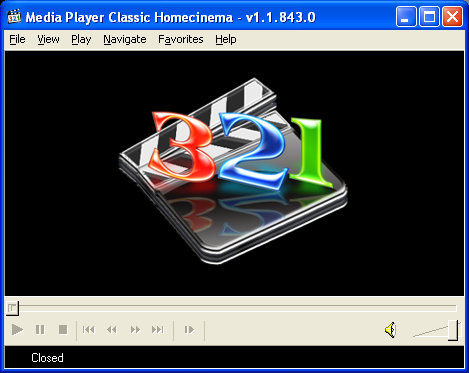
Media Player Classic HC 1.7.10 (32-bit)

We have tested Media Player Classic for windows and it plays he .EVO files used on HDDVDs (although you may need an application such as anydvd HD to decrypt the disc first) Menus are generally Non-Functional but all video playback is functional.

Just play the .EVO files stored in the HVDVD_TS folder on your disc. (Tested on windows xp, Vista, 7, 8 and 8.1 and 10 ) Please ensure you have installed codec packs first.

The easiest way to watch the movie is to open the application. 

1. Click File

2. Click Open Directory

3. Navigate to your HDDVD Drive and click the “HVDVD_TS” Directory and click and “select folder” button and the disc will play from beginning to end

  • Supported Operating Systems:

    Windows® XP SP3, Vista, 7, 8, 8.1, 10 both 32-bit and 64-bit

  • System Requirements:

    An SSE capable CPU 

Members only: browse freely; create a free account or log in to download.
Media Player Classic HC 1.7.10 (64-bit)

We have tested Media Player Classic for windows and it plays he .EVO files used on HDDVDs (although you may need an application such as anydvd HD to decrypt the disc first) Menus are generally Non-Functional but all video playback is functional.

Just play the .EVO files stored in the HVDVD_TS folder on your disc. (Tested on windows xp, Vista, 7, 8 and 8.1 and 10 ) Please ensure you have installed codec packs first.

The easiest way to watch the movie is to open the application. 

1. Click File

2. Click Open Directory

3. Navigate to your HDDVD Drive and click the “HVDVD_TS” Directory and click and “select folder” button and the disc will play from beginning to end

  • Supported Operating Systems:

    Windows® XP SP3, Vista, 7, 8, 8.1, 10 both 32-bit and 64-bit

  • System Requirements:

    An SSE capable CPU 

Members only: browse freely; create a free account or log in to download.
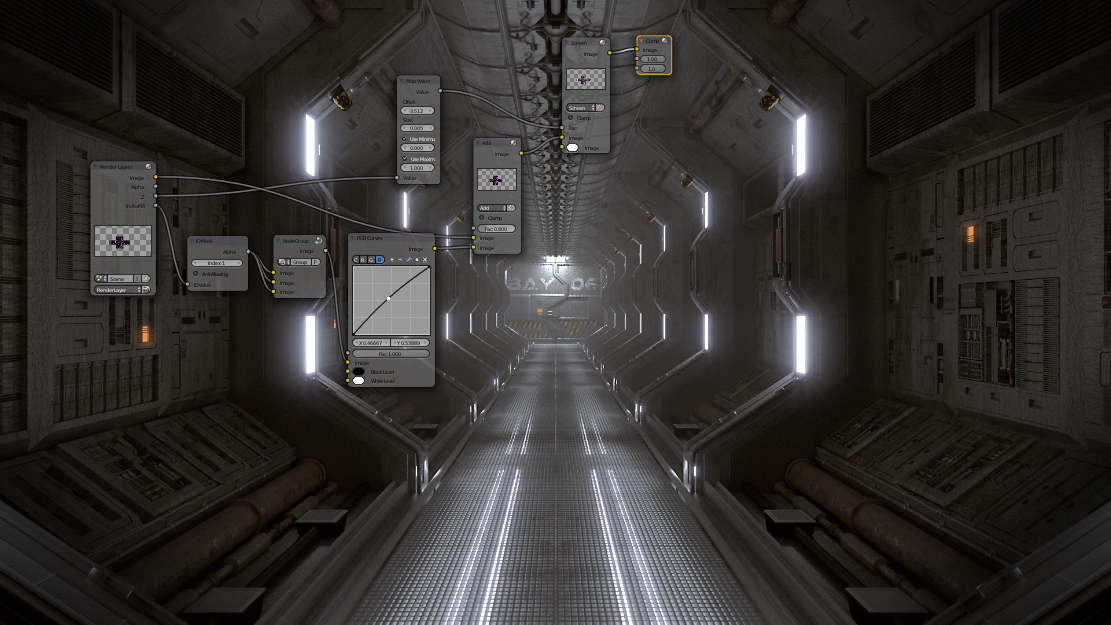
Blender 2.76b for Windows (32-bit and 64-bit)

Photorealistic Rendering

Blender now features a powerful new unbiased rendering engine called Cycles that offers stunning ultra-realistic rendering.

The built-in Cycles rendering engine offers:

  • GPU & CPU rendering
  • Realtime viewport preview
  • HDR lighting support
  • Permissive License for linking with external software

Realistic Materials

With Blender’s new rendering engine the possibilities for materials are endless.

Key features are:

  • Complete Node Support for full customization
  • Physically accurate shaders like glass, translucency and SSS
  • Open Shading Language (OSL) support for coding unique shaders
  • Fast Rigging

    Transforming a model into a posable character has never been easier!

    Blender offers an impressive set of rigging tools including:

    • Envelope, skeleton and automatic skinning
    • Easy weight painting
    • Mirror functionality
    • Bone layers and colored groups for organization
    • B-spline interpolated bones

    Animation toolset

    Whether it’s simple keyframing or complex walk-cycles, Blender allows artists to turn their still characters into impressive animations.

    Blender’s animation feature set offers:

    • Automated walk-cycles along paths
    • Character animation pose editor
    • Non Linear Animation (NLA) for independent movements
    • IK forward/inverse kinematics for fast poses
    • Sound synchronization

    Sculpting

    Experience the joy of sculpting organic subjects using the built-in sculpting feature set of Blender.

    Sculpting in Blender includes:

    • 20 different brush types
    • Multi-res sculpting support
    • Dynamic Topology sculpting
    • Mirrored sculpting

    Fast UV Unwrapping

    Easily unwrap your mesh right inside Blender, and use image textures or paint your own directly onto the model.

    Blender allows for:

    • Fast Cube, Cylinder, Sphere and Camera projections
    • Conformal and Angle Based unwrapping (with edge seams and vertex pinning)
    • Painting directly onto the mesh
    • Multiple UV layers
    • UV layout image exporting

    Full Compositor

    Blender comes with a fully fledged compositor built right in. That means no more exporting to third party programs, you can do it all without leaving the program.

    The compositor comes with:

    • Impressive library of nodes for creating camera fx, color grading, vignettes and much more
    • Render-layer support
    • Full compositing with images and video files
    • Ability to render to multiLayer OpenEXR files
    • Multi-threaded

    Amazing Simulations

    Whether you need a crumbling building, rain, fire, smoke, fluid, cloth or full on destruction, Blender delivers great looking results.

    Blender’s simulation tools include

    • Fluid – Realistic water and fluid simulations.
    • Smoke – Billowing smoke with flames and scene interaction.
    • Hair – Beautiful wafts of hair that blows in the wind and interacts with collisions.
    • Cloth – Amazingly realistic cloth simulations for clothing and environments
    • Rigid Body Physics – Makes any object destructable and collidable
    • Particles – For creating things like rain, sparks and shrapnel

    Game Creation

    Included in Blender is a complete game engine, allowing you to create a fully featured 3d game right inside Blender.

    The game engine includes:

    • Ability to port your models to any third-party game engine
    • Create or code your own game logic
    • Full Bullet Physics integration
    • Python scripting API for advanced control and AI
    • Support for all OpenGLTM dynamic lighting, toon shading, animated materials as well as Normal and Parallax Mapping
    • Playback of games inside Blender without compiling or preprocessing
    • 3D spatial audio using OpenAL

    Camera and Object tracking

    Blender now includes production ready camera and object tracking. Allowing you to import raw footage, track the footage, mask areas and see the camera movements live in your 3d scene. Eliminating the need to switch between programs.

    The Camera and Object Tracker includes:

    • Auto and manual tracking
    • Powerful camera reconstruction
    • Real-time preview of your tracked footage and 3d scene
    • Support for Planar tracking and Tripod solvers

    Library of Extensions

    With a large community of enthusiasts and developers, Blender comes loaded with a vast array of extensions that you can turn on or off easily.

    Some existing extensions include:

    • Generators for trees, terrain, ivy and clouds.
    • Fracture Objects.
    • 3D Printing Toolbox.
    • Rigify meta-rigging system.
    • Import and Export format support for AfterEffects, DirectX, Unreal Game Engine and more!

    Video Editing

    Blender even comes with a built-in Video Editor.

    The Video Editor allows you to perform basic actions like video cuts and splicing, as well as more complex tasks like video masking.

    The Video Editor includes:

    • Live preview, luma waveform, chroma vectorscope and histogram displays
    • Audio mixing, syncing, scrubbing and waveform visualization
    • Up to 32 slots for adding video, images, audio, scenes, masks and effects
    • Speed control, adjustment layers, transitions, keyframes, filters and more.

    File Formats

    Blender comes packed with import/export support for many different programs.

    Including:

    • Image
      JPEG, JPEG2000, PNG, TARGA, OpenEXR, DPX, Cineon, Radiance HDR, SGI Iris, TIFF
    • Video
      AVI, MPEG and Quicktime (on OSX).
    • 3D
      3D Studio (3DS), COLLADA (DAE), Filmbox (FBX), Autodesk (DXF), Wavefront (OBJ), DirectX (x), Lightwave (LWO), Motion Capture (BVH), SVG, Stanford PLY, STL, VRML, VRML97, X3D.

    Flexible Interface

    Novice and advanced users will love the ability to customize their layout completely. From simply splitting their viewport, to fully customizing it with python scripting, blender works for you.

    Blender’s interface also offers:

    • Consistency across all platforms
    • No disruptive pop-up windows
    • Crisp text (support for retina on OSX)

    Members only: browse freely; create a free account or log in to download.

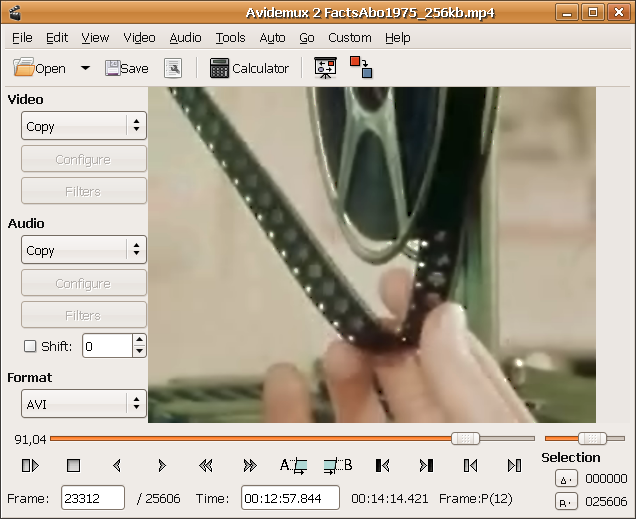
    Avidemux 2.6.12 for Windows

    Avidemux is a free video editor designed for simple cutting, filtering and encoding tasks. It supports many file types, including AVI, DVD compatible MPEG files, MP4 and ASF, using a variety of codecs. Tasks can be automated using projects, job queue and powerful scripting capabilities.

    Avidemux is available for Linux, BSD, Mac OS X and Microsoft Windows under the GNU GPL license. The program was written from scratch by Mean, but code from other people and projects has been used as well. Patches, translations and even bug reports are always welcome.

    Members only: browse freely; create a free account or log in to download.

    Combined Community Codec Pack 2015-10-18 (64-bit)

    Exactly what does the CCCP install and why?

    CCCP Start Menu Group, All Options Installed

    The current playback pack will install:

    • Haali Media Splitter 1.10.262.12 (MKV, MP4, OGM/OGG, TS, AVI)
      • Used for compliant MKV playback. Attempts to disable other MKV splitters on the system. Certain Matroska features are available only with Haali’s splitter and not in Gabest’s. This filter is also capable of being used as a splitter for MP4, OGM and OGG, MPEG-PS, MPEG-TS, and also AVI. AVI and MPEG-PS are not used by default in the pack and is not recommended to do so. You will, however, need the MP4, OGM and TS parts for playing those files. The installer will also set the source filter for each container only if it is checked in the installation, this fixes any issues with previously installed splitters by overriding them.
    • VSFilter (MPC-HC) 2.40.2677.0 (SSA/ASS, SRT, VOBSUB subtitles)
      • For displaying subtitles. It will attempt to disable any previous DirectVobSub installations you might have.
    • FFDShow Tryout 1.1.3611.0 (H.264/AVC, DivX, Xvid, various audio formats etc.)
      • Decodes H.264, Xvid, DivX, generic MPEG-4, Flash video (FLV1 and FLV4), and others. Also used for audio decoding with the following formats turned on by default: AAC, Vorbis, MP3, MP1/2, AC3, DTS, FLAC, TTA, AMR, LPCM. If you would like to turn off ffdshow decoding for a specific video or audio format, read further down for instructions on how to do it properly.
    • MPEG-2 Decoder (MPC-HC) 1.4.2677.0
      • Decodes MPEG2 video (the stuff on a DVD). The filter currently has an extremely low merit level and also MPEG1 decoding removed. It is primarily included as a fallback for DVD MPEG2 decoding if the user does not already have another MPEG2 decoder installed. A few other patches donated by Haali for interlaced/progressive fixes.
    • CoreWavPack 1.1.1
      • Decodes WavPack audio and splits WavPack audio files (.WV) for playback in DirectShow. The only DirectShow implementation to support all three WavPack modes: lossless, lossy, and hybrid.
    • FLV Splitter (MPC-HC) 1.4.2677.0
    • Media Player Classic Home Cinema 1.4.2677.0
      • Based on the original “Media Player Classic” and was created after Gabest, the original author, stopped working on it. Many new player features have been integrated in this player.

    Legacy information:

    • WMV9VCM
      • Required to play WMV9 content if you don’t have Windows Media Player 9 or 10, Windows Media Format SDK, or Microsoft Codec Installation Package for Windows Media Player 7.1 installed – ffdshow can’t decode WMV9. If any of those are installed, then WMV9VCM will be ignored during playback (even if it was installed by CCCP) and the WMV9 codecs that come with them will be used instead (which is a good thing).
      • Starting with CCCP15, WMV9VCM will no longer be included. It is still listed here for those who are using our last pack to support Win9x and include WMV9VCM (CCCP14 – 2007-02-22).

    What other stuff does the CCCP change when installing, and why?

    Altered settings

    • VSFilter
      • Vertical padding: original height – This makes VSFilter keep the aspect ratio – any other value will make it stretch or squeeze it. This is particularily noticeable when playing anamorphic encodes.
      • Load when needed – Only loads VSFilter when there are subs to display.
      • Apply changes immediately – Makes it possible to change VSFilter settings and/or the subtitle stream without restarting playback.
    • MPC
      • Use overlay mixer as video output renderer – Overlay mixer is used as the default renderer for several reasons, compatibility being one of the foremost. VMR7 is only available on Windows XP and VMR9 is horribly buggy (jagged edges and extreme smoothing are common problems). The VMR7 renderless and all VMR9 modes have a tendency to make the video look distinctly greenish, especially on nVidia video cards. The overlay mixer should be the most accurate renderer – it shows you what the video really looks like. So for both compatibility and quality, we use overlay. If, however, you have issues using overlay, try the VMR7 windowed mode.
      • Use default DirectSound audio device – This is mainly to avoid bugs that appear when trying to decode Vorbis audio through the WaveOut device. Also, DirectSound might use slightly less CPU resources, especially on Windows 2000/XP.
      • Audio normalization off – This is better done in ffdshow’s audio decoder, if at all. It’s off by default there too – simple volume control usually works better.
      • Disable certain internal filters – If MPC’s internal filters are enabled, they will be used instead of DirectShow filters. Since we want to actually use the components we install, MPC’s internal filters are disabled depending on what else is installed with the CCCP. Note that some of MPC’s internal filters are outdated and shouldn’t be used – most importantly the MKV splitter.
    • Haali Media Splitter
      • Unregister Gabest’s MKV splitter – Gabest’s splitter is old and outdated, but has a higher DirectShow priority, so if it is installed it will be used instead of Haali’s splitter. Therefore, we try to unregister Gabests splitter upon installation.
      • Autoload fonts without asking – This is needed to play softsubbed MKV’s that has nonstandard fonts muxed into the file. If this option is off, the splitter will ask if you want to load the fonts, and that quickly becomes annoying.
      • Try to open linked files – Makes the splitter try to load linked files. Linking is a feature that allows splitting in a special fashion so that the encoder can, for example, split a movie to two 700 MB files, but have either of them behave as the whole file as long as they are in the same directory. Since some releases use this feature, we have chosen to enable it.
    • ffdshow video
      • Overlay mixer checkbox set to grey state – The only mode that doesn’t break aspect ratios.
      • YV12 colorspace output enabled – This used to be disabled for broad user compatibility reasons. Nowadays any vidcard should support YV12, except in the case of broken drivers. It should be noted that YV12 mode is faster on graphic cards that properly support it.
      • Allow output format changes set to grey state – Set this way for compatibility reasons (especially with WMP10). Grey state means that ffdshow will allow output format changes during playback, but only when connected to a renderer that is known to support it.
      • iDCT set to libmpeg2 – This implementation is the one that performs best according to our tests. It also deals correctly with old DivX encoded content.
    • ffdshow audio
      • AAC decoding set to libfaad2 – realaac doesn’t support parametric stereo (not that anyone should be using that, but who knows), and it seems to crash under certain, rare conditions.
      • Oblivion.exe added to blacklist – Oblivion seems to use DirectShow to play sound, and could cause a flood of ffdshow icons in the systray.
      • Normalize disabled in the Volume filter – One pass normalization is something we generally try to avoid. Note that the Volume filter itself is disabled by default, so it’s just there for people who might enable the filter manually.
      • Normalize disabled in the Mixer filter

    Attempted uninstallation of known trouble-causing DS filters

    • On installation, the pack will attempt to uninstall some things that are known to cause problems (it’s HIGHLY recommended that you let the pack uninstall these for you).
      • DirectVobSub – Conflicts with VSFilter, since DVobSub is an older version of VSFilter. The CCCP version of VSFilter is up-to-date and well tested, and should be used instead of any other version.
      • Morgan Stream Switcher (mmswitch.ax) – Possibly the buggiest DirectShow filter ever, and it’s not needed with the filters and players the pack installs.
      • Matrix Mixer – Buggy and completely unnecessary, since ffdshow and the players can do what it does.
      • Gabest’s Matroska Splitter (MatroskaSplitter.ax) – See the entry on Haali above.
      • Intervideo MPEG4 Decoder (MP4VDEC.AX) – Has higher priority than just about everything else and has never actually managed to decode MPEG4 video properly.

    The settings manager

    • There are some additional settings in the last page of the installer. Refer to the general FAQ entry about the settings manager for detailed descriptions of what they mean. Basically, if you’re not sure about what they mean, don’t change them. The defaults should work fine for most people.

    I want to use Xvid for decoding Xvid. How do I set it up properly?

    <p style="margin-top: 0.5em; margin-bottom: 0.5em; line-height: 22.4px; color: rgb(

    Members only: browse freely; create a free account or log in to download.